
Connect QQ via QQ Official Bot (Websockets)
Supported Basic Message Types
Version v4.19.6.
| Message Type | Receive | Send | Notes |
|---|---|---|---|
| Text | Yes | Yes | |
| Image | Yes | Yes | |
| Voice | Yes | Yes | |
| Video | Yes | Yes | |
| File | Yes | Yes |
Proactive message push: Supported.
Create a QQ Bot in AstrBot with One-click QR Setup (Recommended)
Setup Flow
- In AstrBot WebUI, click
Botsin the left sidebar, then click+ Create Bot. - Select
QQ Official Bot (WebSocket). - Under
Choose setup method, selectOne-click QR setup, click start, then scan the QR code with mobile QQ. - After you confirm the QR binding, AstrBot automatically fills in
AppIDandAppSecret. Make sureEnableis checked, then clickSave. - Back on the QQ Open Platform page, click
Scan QR Code to Chatnext to your bot, then scan with your mobile QQ to start chatting.
Use in Group Chats
Add to a Group Chat
Open the created QQ bot profile page (mobile QQ -> Contacts -> Bots tab). You can find Add to group chat near the bottom. Currently, the bot can only be added to groups where you are the group owner.
Set Message Access Scope and Proactive Speaking
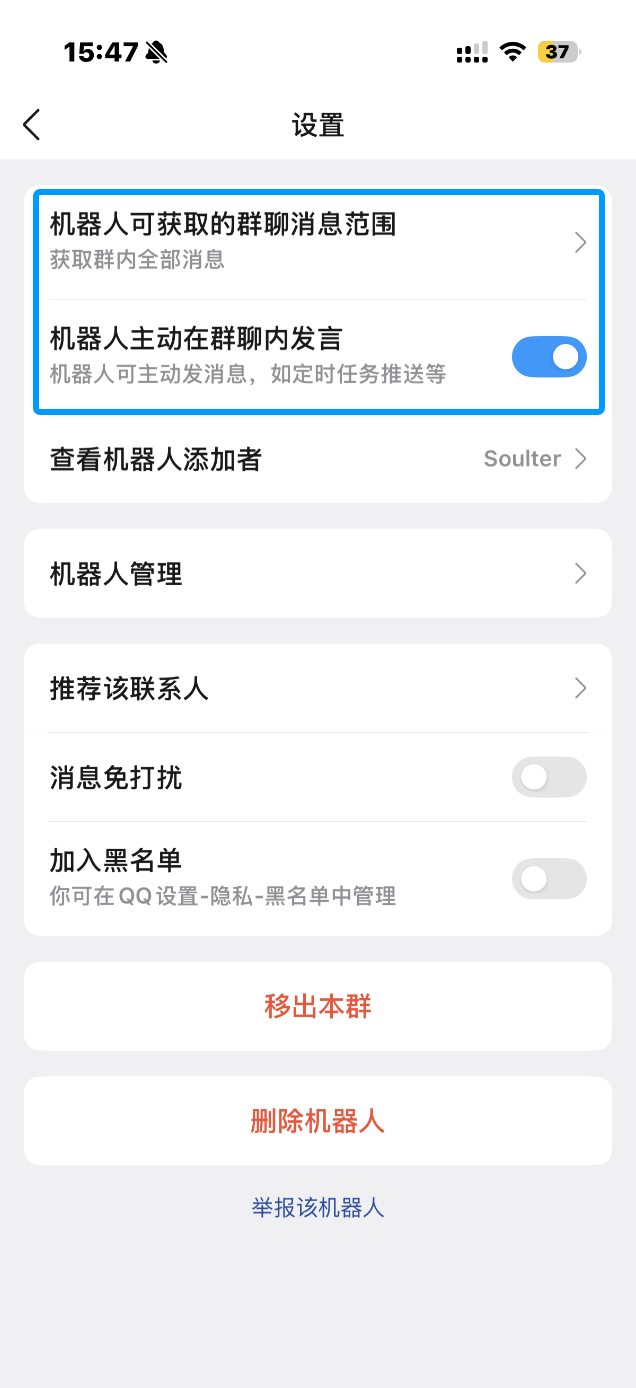
In mobile QQ group settings, open the bot settings page. We recommend setting Messages the bot can access to All group messages, and enabling Allow the bot to proactively speak in the group.
With this configuration, the bot can receive full group messages and proactively push messages to the group, such as scheduled task notifications and plugin notifications.
Manually Apply for a QQ Bot (Not Recommended)
Apply for a Bot
WARNING
- QQ Official Bot currently requires an IP whitelist.
- It supports group chat, private chat, channel chat, and channel private chat.
Open QQ Official Bot and sign in.
Create a bot, fill in name/description/avatar, then submit for review. After security verification passes, creation is complete.
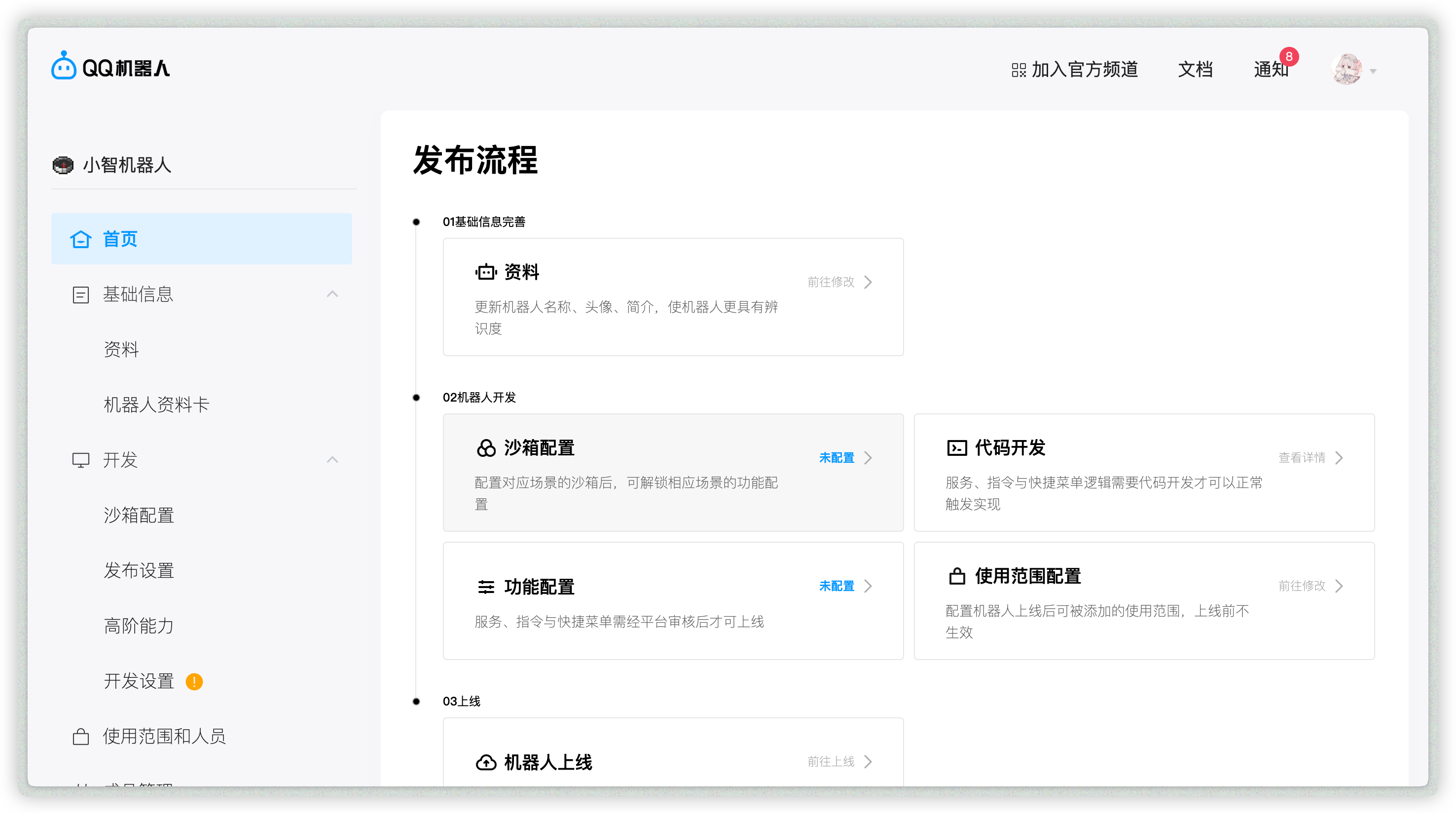
Open the created bot to enter its management page:
Allow Bot in Channel / Group / Private Chat
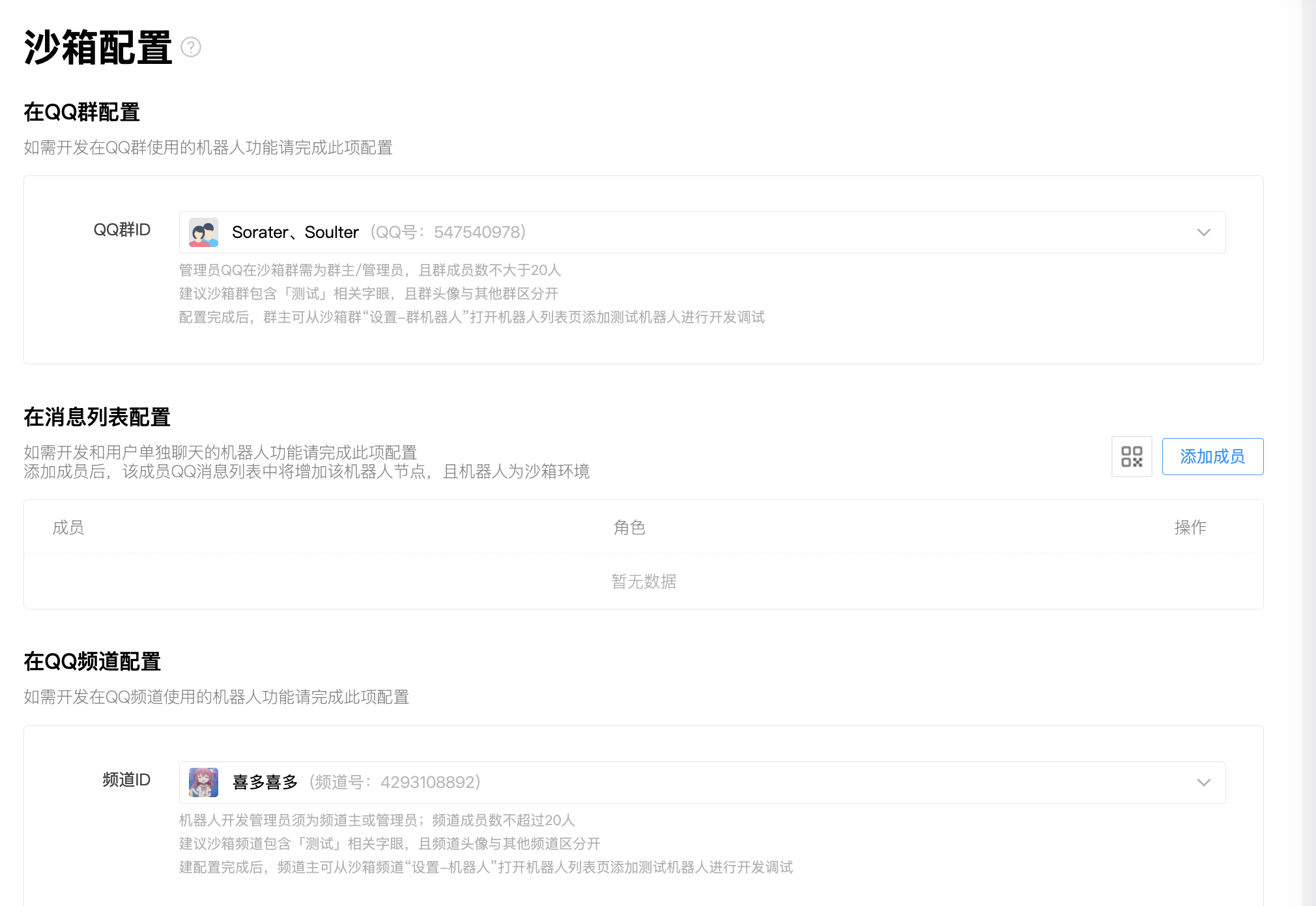
Open Sandbox Configuration to set a sandbox channel / QQ group / QQ private chat (up to 20 members).
Then configure QQ groups, private chat QQ accounts, and QQ channels as needed.
Get appid and secret
After adding the bot where you need it, open Development -> Development Settings, then copy appid and secret.
If you use AstrBot WebUI's One-click QR setup, you can skip this step. AstrBot fills in appid and secret automatically after QR binding succeeds.
Add IP Whitelist
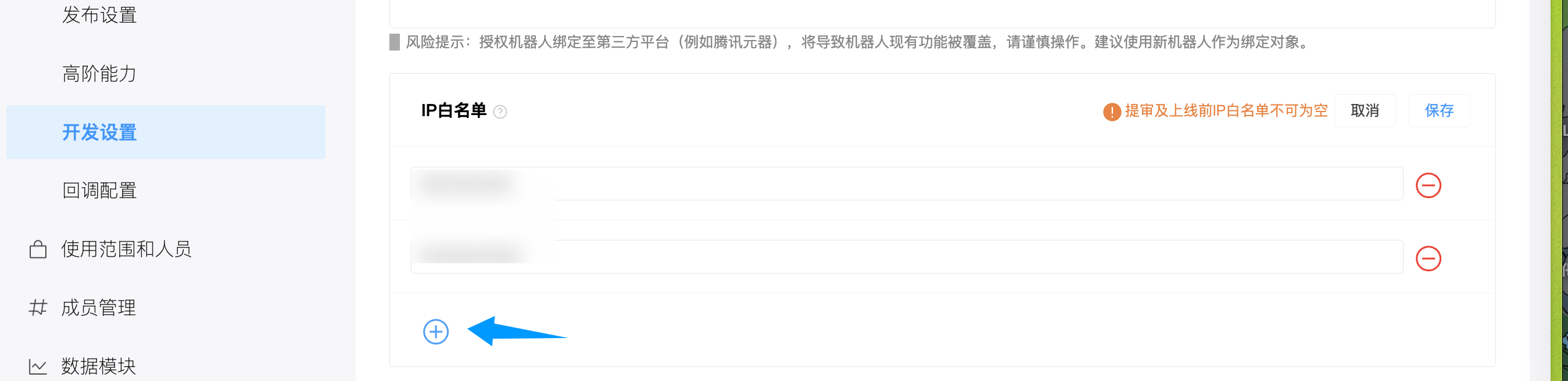
Open Development -> Development Settings, find IP whitelist, and add your server IP.
TIP
If you do not know your server IP, run curl ifconfig.me or check ip138.com.
In NAT environments without a public IP, the observed IP may change depending on your carrier. Use proxy/tunnel if needed.
Configure in AstrBot
- Open AstrBot Dashboard.
- Click
Botsin the left sidebar. - Click
+ Create Bot. - Select
qq_official.
Recommended: use One-click QR setup.
- Under
Choose setup method, selectOne-click QR setup. - Click start, then scan and confirm the QR code with mobile QQ.
- Wait until the page shows binding success. AstrBot fills in
appidandsecretautomatically. - Adjust
ID,Enable group/C2C message list,Enable guild direct message, and other options as needed, then clickSave.
If QR setup is unavailable, choose Manual setup and fill in:
- ID (
id): any unique identifier. - Enable (
enable): checked. appid: from QQ Official Bot platform.secret: from QQ Official Bot platform.- Enable group/C2C message list (
enable_group_c2c): keep enabled if you need QQ message-list private chat. - Enable guild direct message (
enable_guild_direct_message): keep enabled if you need guild direct messages.
Click Save.